 易网时代-编程资源站
易网时代-编程资源站
易网时代-编程资源站 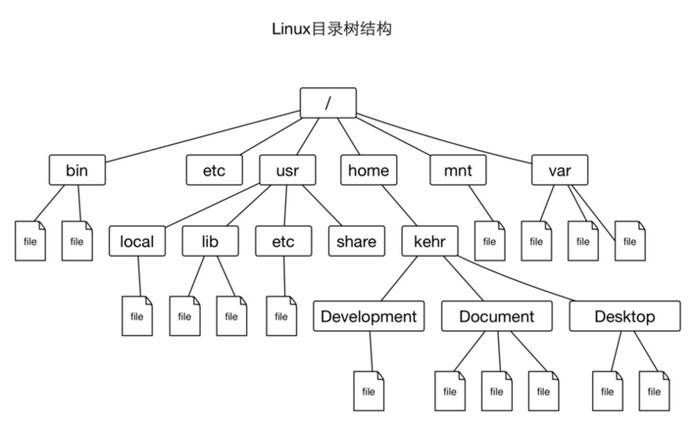
其中处于顶端的/是根目录,linux下所有的文件均起始于根目录。另外很重要的一点,linux中不仅普通文档是文件,目录是文件,甚至设备、进程等等都被抽象成文件。这样做的目的是为了简化操作和方便管理。
于是,本文开始所说的控制权,即为用户对系统中文件的控制权。通常所说的某某文件的权限,是针对特定用户而言的。
另外,每一个登录的用户,在任意的时刻均处于某个目录之内,称为当前目录(current directory)。用户在刚刚登录的时候所处的目录是家目录,root用户的家目录是/root,普通用户的家目录通常为/home/user_name。在这里第一个字符/即是上文所说的根目录,root和home是根目录下的两个子目录名,要注意home后面的/是目录分隔符,而不是目录名的一部分,user_name是普通用户家目录的名字。
下面我们来看具体命令:
1、pwd 打印当前目录
pwd [OPTION]...
例如:
[root@centos7 ~]# pwd/root2、cd 切换目录
[root@centos7 ~]# cd /[root@centos7 /]# pwd/这两个命令非常简单,简单到它们的选项都不常用,其中cd命令后面跟一个路径名。这个路径名可以是“绝对的”也可以是“相对的”。绝对的表示成以/为开头的路径名,如命令cd /usr/local/src中的路径名;相对的表示成相对于当前目录的路径名,若将linux中目录的包含与被包含关系比喻成父子关系的话,符号..代表的是父目录,符号.代表当前目录。
[root@centos7 src]# cd ../../..[root@centos7 /]# pwd/然后再切换回root的家目录: cd root和cd ./root
[root@centos7 /]# cd ./root[root@centos7 ~]# pwd/root另外如果cd后面任何参数都没有的时候,执行的效果是切换回家目录:
[root@centos7 /]# cd[root@centos7 ~]# pwd/root3、ls 列出目录内容
[root@centos7 ~]# lsanaconda-ks.cfg install.log install.log.syslog上面的例子显示了/root目录下的三个文件anaconda-ks.cfg、anaconda-ks.cfg、anaconda-ks.cfg。
[root@centos7 ~]# ls -ltotal 84-rw------- 1 root root 1666 Jan 14 2016 anaconda-ks.cfg-rw-r--r-- 1 root root 55745 Jan 14 2016 install.log-rw-r--r-- 1 root root 5039 Jan 14 2016 install.log.syslog显示结果的意思后述。
[root@centos7 ~]# mkdir temp[root@centos7 ~]# lsanaconda-ks.cfg install.log install.log.syslog temp选项-p可以递归地创建子目录,如进入temp并创建目录dir1和dir2,dir1的子目录test:
[root@centos7 ~]# cd temp[root@centos7 temp]# mkdir -p dir1/test dir2[root@centos7 temp]# lsdir1 dir2[root@centos7 temp]# cd dir1[root@centos7 dir1]# lstest5、touch “创建文件”
[root@centos7 temp]# touch file1 dir1/file2[root@centos7 temp]# lsdir1 dir2 file1[root@centos7 temp]# cd dir1[root@centos7 dir1]# lsfile2 test6、useradd 添加账号
[root@centos7 dir1]# cd /home/learner[root@centos7 learner]# ls[root@centos7 learner]#终端上并没有打印出任何信息,试试ls的-a选项:
[root@centos7 learner]# ls -a. .. .bash_logout .bash_profile .bashrc选项-a作用是显示目录下所有文件,包括当前目录.和父目录..,linux中以.开头的文件是隐藏文件。在这里的三个隐藏文件是用户learner登录系统时所要用到的配置文件。
[root@centos7 ~]# passwd learnerChanging password for user learner.New UNIX password: xxxxxx #此处的xxxxxx并不在屏幕上显示BAD PASSWORD: it is too simplistic/systematic #此处可能会给出密码太简单的警告Retype new UNIX password: xxxxxx#重复输入,此处的xxxxxx不在屏幕上显示passwd: all authentication tokens updated successfully.当passwd命令后没有用户名直接执行时,它的作用是更改当前账号的口令。
[root@centos7 ~]# cat /etc/passwdroot:x:0:0:root:/root:/bin/bashbin:x:1:1:bin:/bin:/sbin/nologindaemon:x:2:2:daemon:/sbin:/sbin/nologin....learner:x:1000:1000::/home/learner:/bin/bash这里节选了部分输出,我们看到新创建的账号learner的信息在文件最后一行。文件中每一行都被:分割为7列,拿第一行举例说明每一列所表示的含义:
[root@centos7 ~]# head -n 3 /etc/grouproot:x:0:bin:x:1:daemon:x:2:显示文件/etc/group的前三行。
[root@centos7 temp]# tail -n 4 /etc/shadowpostfix:!!:16814::::::sshd:!!:16814::::::tcpdump:!!:16994::::::learner:$6$.U5pPYhu$h9TnYR9L4dbJY6b6VgnAQBG5qEg6s5fyJpxZVrAipHeeFhHAiHk6gjWa/xOfvWx.CzM2fvk685OEUc.ZdBYiC0:17095:0:99999:7:::显示文件/etc/shadow的后4行。
[root@centos7 ~]# groupadd -g 1005 group1[root@centos7 ~]# useradd -u 1002 -g 1000 -s /bin/sh tom[root@centos7 ~]# tail -n 1 /etc/passwdtom:x:1002:1000::/home/tom:/bin/sh[root@centos7 ~]# tail -n 1 /etc/groupgroup1:x:1005:这里useradd命令的选项-u、-g和-s分别指定新用户的uid、gid和登录shell。
[root@centos7 temp]# ls -l总用量 0drwxr-xr-x 3 root root 29 10月 21 20:34 dir1drwxr-xr-x 2 root root 6 10月 21 20:33 dir2-rw-r--r-- 1 root root 0 10月 21 20:34 file1这部分输出被分为7个部分:
[root@centos7 temp]# chmod g+x file1 [root@centos7 temp]# ls -l file1 -rw-r-xr-- 1 root root 0 10月 21 20:34 file1这里g+x表示给group增加执行x的权限。
[root@centos7 temp]# chmod o-r file1 [root@centos7 temp]# ls -l file1-rw-r-x--- 1 root root 0 10月 21 20:34 file1这里o-r表示给others减少读r权限。
[root@centos7 temp]# chmod a=rw file1 [root@centos7 temp]# ls -l file1 -rw-rw-rw- 1 root root 0 10月 21 20:34 file1这里a=rw表示给所有人all设置成rw-权限。
[root@centos7 temp]# chmod 644 file1 [root@centos7 temp]# ls -l file1 -rw-r--r-- 1 root root 0 10月 21 20:34 file1如给目录dir1和目录内的所有目录和文件权限都设置成777:
[root@centos7 temp]# chmod 777 -R dir1[root@centos7 temp]# ls -l总用量 0drwxrwxrwx 3 root root 29 10月 21 20:34 dir1drwxr-xr-x 2 root root 6 10月 21 20:33 dir2-rw-r--r-- 1 root root 0 10月 21 20:34 file1选项-R作用是递归地改变目标权限。
[root@centos7 tmp]# ls -l /....drwxrwxrwt. 7 root root 88 10月 22 21:14 tmp....我们看到权限最后一位是t,这里代表粘滞位(sticky),它的作用是给目录特殊的权限:使用户不能删除该目录下不属于此用户的文件。
[root@centos7 bin]# ls -l /bin/su-rwsr-xr-x. 1 root root 32072 11月 20 2015 /bin/su所有者的权限rws,这里的s代表suid,如果在用户组位置的话代表sgid,作用是给文件特殊的权限:当用户执行此文件的时候,把他当成是文件的所有者来执行。
[root@centos7 temp]# lsattr ---------------- ./dir1---------------- ./dir2---------------- ./file1列出了文件的隐藏权限位,共有16位(由于隐藏权限是文件系统相关的,不同的文件系统对于文件的隐藏权限的设定不一定相同)。
[root@centos7 temp]# chattr +a file1 [root@centos7 temp]# lsattr file1 -----a---------- file1这里的a权限表示:这个文件将只能添加数据,而不能删除也不能修改数据,只有root才能配置这个属性。
[root@centos7 temp]# chattr +i file2 [root@centos7 temp]# lsattr file2 ----i----------- file2这里的i权限表示:使文件不能被修改、删除、改名、链接。只有root才能配置这个属性。
[root@centos7 temp]# chown learner file1 [root@centos7 temp]# ls -l file1-rw-r--r-- 1 learner root 0 10月 21 20:34 file1如递归地改变目录dir1和其下面的所有目录和文件,使它们的所有者和所属组均为learner:
[root@centos7 temp]# chown -R learner:learner dir1[root@centos7 temp]# ls -l总用量 0drwxrwxrwx 3 learner learner 29 10月 21 20:34 dir1....这里的用户和用户组可以用对应的uid和gid代替,冒号:也可以换为点号.。
[root@centos7 ~]# iduid=0(root) gid=0(root) 组=0(root)17、whoami,who,w 显示登录用户信息
[root@centos7 ~]# whoamiroot命令who打印当前登录用户信息:
[root@centos7 ~]# whoroottty1 2016-09-30 15:18rootpts/02016-10-23 17:12 (192.168.78.140)learner pts/12016-10-23 17:49 (192.168.78.140)rootpts/22016-10-23 17:50 (192.168.78.140)显示信息中第一列为用户名,第二列为登录终端,第三列为登录时间,最后为登录ip地址。
[root@centos7 ~]# w 17:56:59 up 23 days, 2:39, 4 users, load average: 0.00, 0.01, 0.05USERTTYFROMLOGIN@ IDLE JCPU PCPU WHATroottty1309月16 23days 0.01s 0.01s -bashrootpts/0 192.168.78.140 17:12 7:31 0.01s 0.00s bashlearner pts/1 192.168.78.140 17:49 7:29 0.00s 0.00s -bashrootpts/2 192.168.78.140 17:50 3.00s 0.00s 0.00s w输出的第一行显示了系统运行时间,当前有多少用户登录,cpu的平均负载(以后文章中会有详述)。余下的信息增加了空闲时间,cpu的使用时间以及运行的命令。
[root@centos7 ~]# su learner -c pwd/root例子中使用账号learner执行了命令pwd。当不使用选项-c时则为切换用户:
[root@centos7 ~]# whoamiroot[root@centos7 ~]# su learner[learner@centos7 root]$ whoamilearner注意如果是从普通账号切换至root或其他账号时,需要输入对应密码。
[root@centos7 ~]# pwd/root[root@centos7 ~]# su - learner上一次登录:日 10月 23 18:22:23 CST 2016pts/5 上[learner@centos7 ~]$ pwd/home/learner[learner@centos7 ~]$ exit登出[root@centos7 ~]# whoamiroot
[learner@centos7 ~]$ sudo -lWe trust you have received the usual lecture from the local SystemAdministrator. It usually boils down to these three things:#1) Respect the privacy of others.#2) Think before you type.#3) With great power comes great responsibility.[sudo] password for learner: 对不起,用户 learner 不能在 centos7 上运行 sudo。这里看到learner用户并不能使用sudo。若要设置用户使用sudo,需要编辑sudo的配置文件/etc/sudoers。该文件中以符号#开头的都是注释行,用来解释或描述配置,并不起实际作用。
[root@centos7 temp]# lsdir1 dir2 file1 file2[root@centos7 temp]# mv file2 /root/temp/dir2/[root@centos7 temp]# lsdir1 dir2 file1[root@centos7 temp]# ls dir2/file2命令mv还可以对文件进行改名,如将目录dir2移动到dir1内并改名为dir3:
[root@centos7 temp]# lsdir1 dir2 file1[root@centos7 temp]# mv dir2 ./dir1/dir3[root@centos7 temp]# lsdir1 file1[root@centos7 temp]# ls dir1/dir3 file2 test21、cp 复制文件或目录
[root@centos7 temp]# lsdir1 file1[root@centos7 temp]# cp file1 file3[root@centos7 temp]# lsdir1 file1 file3复制目录dir1内目录dir3及其包含内容到当前目录下,起名为dir2:
[root@centos7 temp]# cp -r dir1/dir3/ ./dir2[root@centos7 temp]# lsdir1 dir2 file1 file3复制目录的时候需要使用选项-r,当目标已存在时,会需要用户确认是否覆盖,输入y或yes表示确认覆盖,输入n或no表示取消覆盖:
[root@centos7 temp]# cp file1 file3cp:是否覆盖"file3"? y[root@centos7 temp]# cp file1 file3 cp:是否覆盖"file3"? no可以使用选项-f(force)来强制复制,不需要确认。
[root@centos7 temp]# lsdir1 dir2 file1 file3[root@centos7 temp]# rm -rf dir2/[root@centos7 temp]# lsdir1 file1 file323、whereis 查找系统命令
[root@centos7 test]# whereis lsls: /usr/bin/ls /usr/share/man/man1/ls.1.gz
[root@centos7 temp]# du file1 4file1输出的结果第一列表示所占空间大小(单位是KB)。第二列是是文件名。
[root@centos7 temp]# du -h file1 4.0K file1当使用-s选项作用在目录上时,只显示总用量。不用时则显示该目录下的每个文件:
[root@centos7 temp]# du dir10dir1/test0dir1/dir30dir1[root@centos7 temp]# du -sh dir10dir1linux秉承“一切皆文件”的思想,在这样的思想作用之下,linux内的所有操作都可以说是文件相关的。这里列出的命令都是最为基础的文件相关命令,每一个使用者都需要牢记。当然这里并不能将它们的所有用法一一列举,如想了解更多,一定要记得man!